Like ExcelIn development
EmiSum
Spreadsheet
Formulas, charts and tables for your numbers. Will open and save .xlsx, .ods and .csv.
Your donation motivates us to keep workingWrite, format and share documents just like in Word
Opens and saves .docx, .odt and RTF. Spell checker, tables, images and much more. Free and in your browser.
Hi, I'm EmiText, your text editor like Word!
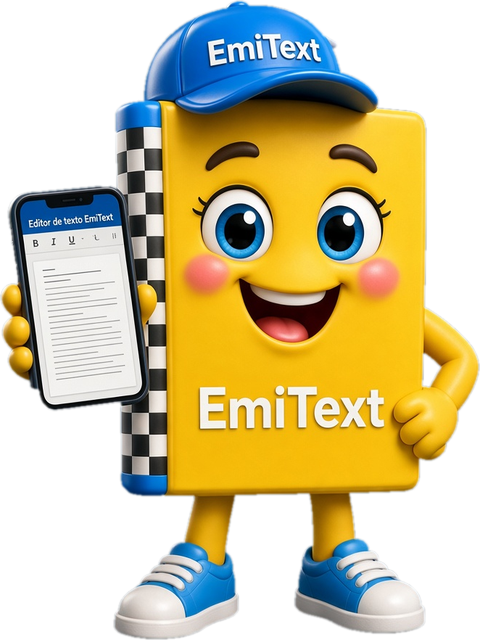
EmiText is a full-featured word processor that runs in your browser. It has true paginated pages, headers, tables, images, a table of contents and track changes, and it opens and saves Word and LibreOffice documents. It even comes with a mascot who explains every feature.
Fonts and sizes, bold, italic, underline, color, highlight, alignment, line spacing, indents and lists.
A4, Letter, Legal and A5, with margins, orientation, header, footer and page numbers.
Merge cells, add shading and borders, and organize data with sorting.
Resize by dragging, wrap text left, right, or above and below, and add alt text.
Use Normal, Heading 1 to 3 or create your own styles and change them across the whole document at once.
Built from your headings, with dot leaders and page numbers, and it updates itself.
They turn into genuine footnotes when you export to Word, LibreOffice or RTF.
Underlines mistakes in Spanish text as you type, suggests corrections and works offline.
Review documents with other people; comments and changes are saved in .docx and .odt.
Find and change text across the whole document in seconds.
See how it will look on paper and save as PDF from your browser's print dialog.
A friendly helper who explains features and shortcuts, with no external AI and nothing sent anywhere.
Work with less glare and recover your document if the tab closes by mistake.
Install it as an app and use it without internet; it shows up as an option to open your .docx, .odt, .rtf and .md files.

Formats EmiText can open and save
Choose how you want to use EmiText
Nothing to install. Open EmiText and get going in seconds.
Install it as its own app: open it from your desktop and use it offline.
You would make us very happy with a donation for using our products. It motivates us to keep creating for the community.
Yes. EmiText is free for everyone, with no trial version and no time limits. It's funded by the ads in the right-hand side column.
No. Just open EmiText and start using it; we don't ask for sign-up or an email address.
No. Your files open and save on your own device; EmiText doesn't send them to any server.
Yes. If you install it from Chrome or Edge, it becomes a regular app and keeps working without internet after the first load.
Yes. EmiText opens and saves the most common formats (.docx .odt .rtf .md .html .txt .emitext), so you can send and receive files from Word and other apps.
Right now EmiText is available in: Español. More languages are on the way.
Not directly. Open them in Word or LibreOffice, save them as .docx and then open them in EmiText.
Go to File → Print & preview, click Print and choose “Save as PDF” in your browser's dialog.
Spreadsheet
Formulas, charts and tables for your numbers. Will open and save .xlsx, .ods and .csv.
Your donation motivates us to keep workingPresentations
Slides with templates, images and transitions. Will open and save .pptx and export to PDF.
Your donation motivates us to keep workingConnect your email accounts, organize your inbox and write formatted messages.
Its mascot is on the way